Updating
This section will walk you through updating your Palworld Modding Kit to the latest version.
Downloading the Latest Version
Using Git
If you cloned the Palworld Modding Kit repository using Git, you can easily update your local copy by running the following commands in your terminal while inside the PalworldModdingKit folder:
git fetch
git pull
This will fetch the latest changes from the repository and merge them into your local copy.
Using ZIP Download
If you downloaded the Modding Kit as a ZIP file, you'll need to download the latest version from here.
-
In your local Modding Kit folder, delete the
Sourcefolder and replace it with theSourcefolder from the newly downloaded ZIP file. -
Replace the
Config,Pluginsfolders andPal.uprojectwith the ones in the ZIP file. You can also delete these folders/files before replacing them, but make sure to back up yourWWisefolder in thePluginsfolder before doing this so you don't have to redo the process of setting upWWiseagain.
Forcing a Rebuild
Now that you have the latest files, you will need to force a rebuild of the Modding Kit to ensure all changes are applied correctly. You can do this by deleting the Binaries, Build, Intermediate and Windows folders in your Modding Kit directory as seen in the image below.
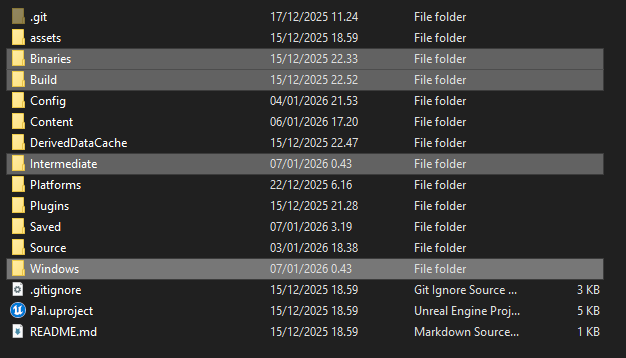
After deleting these folders, open the Pal.uproject file by double-clicking it. If it tells you that modules are out of date and need to be recompiled, press YES. This will take a while so be patient.
Once it's done compiling, it should open Unreal Editor and you're good to go!