Modding Tools
If you already know the tools, you can skip ahead, but don't blame us if we reference something and you don't know what we're talking about.
UE4SS
This is your bread and butter. UE4SS is a scripting system for unreal engine which allows us to load our mods. It also comes with a console that is extremely helpful for developing and testing mods.
Installation
If you're using a mod manager, you probably have UE4SS installed already, but just in case, we'll cover it here. You should still check your UE4SS-settings.ini to ensure they match the values provided
- Grab the latest UE4SS-Palworld-xxxxxxxxx-zDev.zip from the assets section where xxxxxxxxx is the git hash for that version.
- Extract
ue4ssanddwmapi.dllinto yourPalworld/Pal/Binaries/Win64folder orPalworld/Pal/Binaries/WinGDKfolder if you have the Xbox Game Pass version of the game. - Open
UE4SS-settings.iniin your editor of choice, make sure you have the following settings:ConsoleEnabled = 0GuiConsoleEnabled = 1GuiConsoleVisible = 1bUseUObjectArrayCache = trueto enable the use of Live View feature which we'll cover later
If you get a white console screen when UE4SS loads, change GraphicsAPI to dx11
Breakdown
UE4SS has 5 tabs, and you will make heavy use of two of them.
Console - This is the first heavily used tab, and it's self-explanatory. This is where everything you print() will show up. Not much else to say.
Live View - This lets you get a live view of stuff in memory, filtered by whatever you search. It is incredibly useful and will probably be your most used tool. I'll cover its use in more detail once we get further into things.
Watches - If there's a value you want to keep an eye on from Live View, you can right-click -> Watch to get it stickied in this tab. Honestly I don't use it much, but it can be useful when testing stuff if you want to keep an eye on specific values.
Dumpers - Important for the first use, untouched afterwards for the most part. Right now, before you do anything else, you should Dump CXX Headers and Generate Lua Types.
-
Dump CXX Headersgives you aCXXHeaderDumpfolder with all of the header files to dig through. It's more or less the same as the stuff inPalworldModdingKit/Source/Pal/Public, but a slightly different format. Use whichever you prefer. What's the difference? ThePalworldModdingKitfolder has all the difference classes broken down into their own files. If you like your stuff separated all nice and neat, then use that. You grab the file for the class you want and everything relevant is in there. If you're a barbarian like me and prefer working with only one file, you can use theCXXHeaderDump, where pretty much everything we care about is stuffed into one file,Pal.hpp. They also have slightly different formatting. Up to you. -
Generate Lua Typeswill create atypesfolder in yourMods/shared/folder, which helps give intellisense autocomplete as long as you openModsas your project folder. You can also search through these types rather than theCXX HeadersorPalworldModdingKit, if you prefer the Lua layout. It's similar toCXX Headersin that most things are inPal.lua, but they're written in Lua syntax rather than C++
BP Mods - List of Logic Mods loaded by UE4SS and their metadata. You can check out the Logic Mods section for more information since this is a Lua focused tutorial.
Lua Debugger - This tab allows you to reload, debug your Lua mods with breakpoints similar to other languages like C#/C++ and more, but we'll cover that later since it's a pretty vast topic.
FModel
Follow the installation section on the FModel page.
For us on the Lua side, this is mostly used to view the data table values in the game. Yes, you can look through BPs, but I think it's much easier to search through the header files. uasset files can be awkward to browse through.
For data tables, I recommend just saving them all as JSON so that you can just do Find in Files with VSCode.
To do that:
- Open
Pal/Content/Palfolder in FModel - Right-Click
DataTable - Click
Save Folder's Packages Properties (.json)
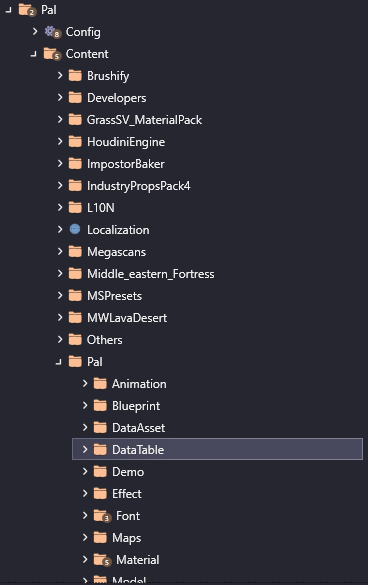
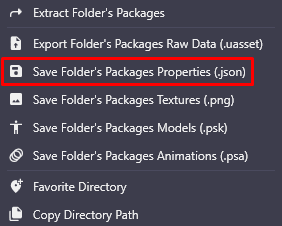
Then when you want to search through them, just search through the root DataTable folder.
VSCode
Or your editor of choice. I prefer VSCode with the Lua extension. Since that's what I have installed, that's what I'll base the tutorial off of. If you chose something else, you'll have to convert these instructions to the relevant stuff in your editor.
Modding Setup
- Once installed open up a new window, then
File->Add Folder to Workspace - Navigate to your
Binaries/Win64orBinaries/WinGDKfolder and add bothModsand theCXXHeaderDumpfolder you generated earlier - You'll also want to add the
DataTablefolder you just dumped from FModel - You can then save that workspace as whatever you want. Should look something like the picture below.

All of your dev stuff will be in Mods/YOUR_MOD_FOLDER and you'll use CXXHeaderDump to search through the header files, and the DataTable folder if you want to search through those.
We use Mods as the root folder for our mod because the library info for UE4SS and the generated lua types are in Mods/shared. Otherwise you have to copy that into every single one of your mods to get the intellisense.